After many weeks of frustration, I have finally found a solution for this issue that seems to have plagued many of us using BlombGo 2.5.2 on Windows 10.
If your mounted drive disappears, or if you attempt to log in to BlompGo and map to any drive letter, and it doesn't appear in Windows Explorer (or accessible by any programs), follow these steps:
Start BlompGo, and wait for it to say BlompGo is Ready. In your icon tray, right click on the BlompGo icon, and click Logout.
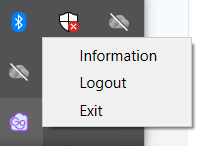
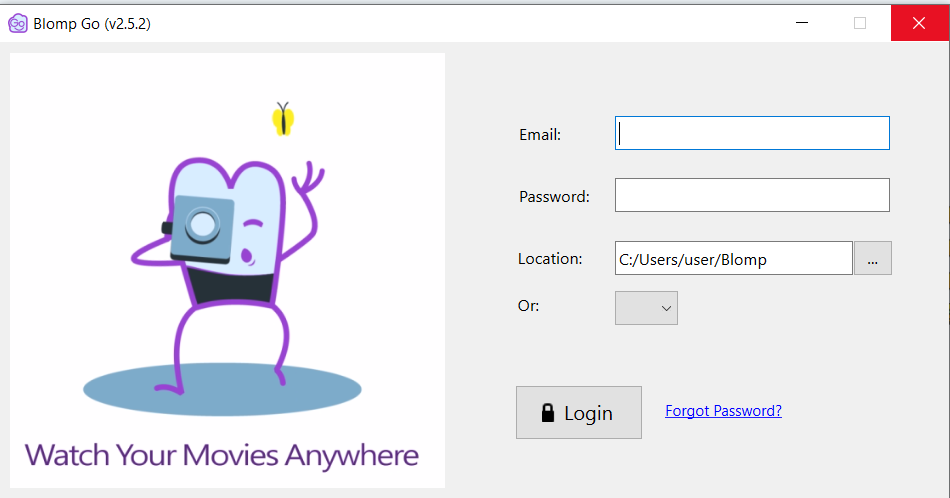
Then close BlompGo using the X icon in the upper right hand corner.
From there, open Windows Explorer, and navigate to the following:
/Users/[current user]/AppData/Local/rclone
It should look something like this:
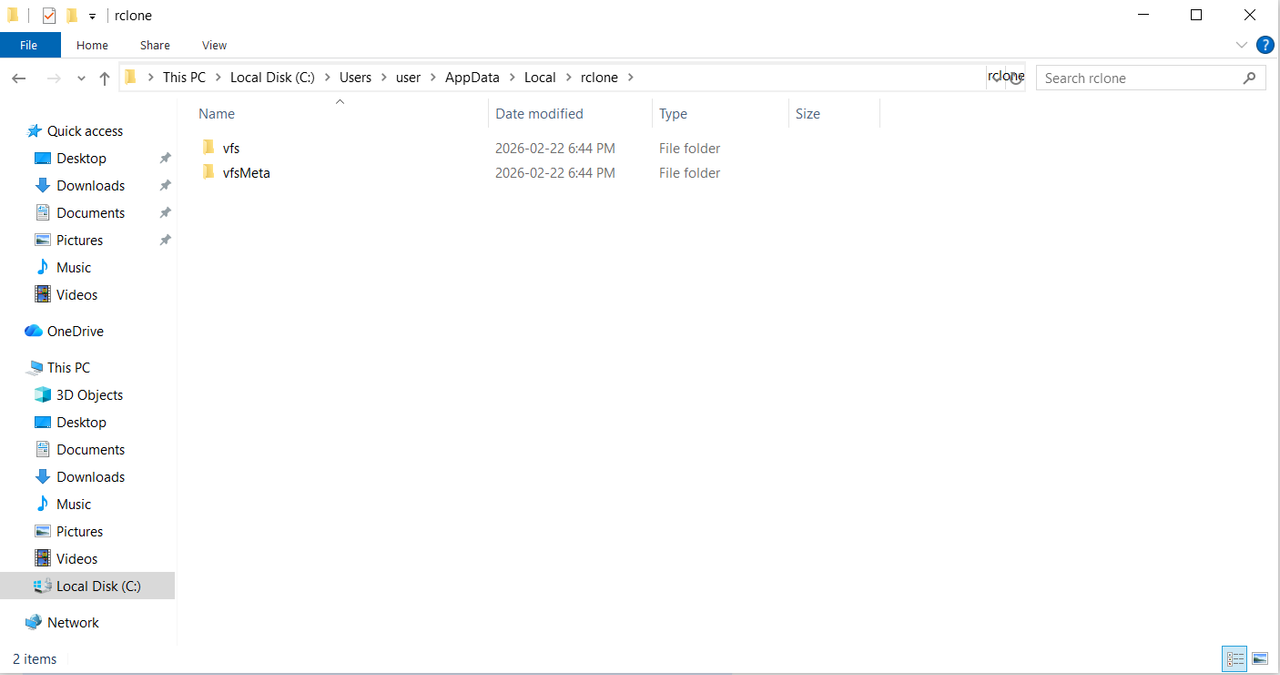
In that folder, delete both the vfs and vfsMeta folders (I use Shift-Del to avoid it going into my recycle bin)..
Once you've done that and it's fully completed, you can close Windows Explorer, and re-open BlompGo. It will prompt you to log in again, and select which Drive Letter you'd like to assign to it.
Voila! BlompGo is functioning as a drive letter again.
I hope this is helpful for those who have had this frustration like I have!